<?xml version="1.0" encoding="utf-8"?><feed xmlns="http://www.w3.org/2005/Atom" ><generator uri="https://jekyllrb.com/" version="4.3.2">Jekyll</generator><link href="https://atomicwriting.com/atom.xml" rel="self" type="application/atom+xml" /><link href="https://atomicwriting.com/" rel="alternate" type="text/html" /><updated>2023-09-04T14:54:05+00:00</updated><id>https://atomicwriting.com/atom.xml</id><title type="html">Atomic Writing</title><subtitle>Writing by Adam Liter.</subtitle><entry><title type="html">Using a wildcard domain specification with a Let’s Encrypt SSL certificate</title><link href="https://atomicwriting.com/2018/03/18/wildcard-certificate-with-letsencrypt/" rel="alternate" type="text/html" title="Using a wildcard domain specification with a Let’s Encrypt SSL certificate" /><published>2018-03-18T21:00:00+00:00</published><updated>2018-03-18T21:00:00+00:00</updated><id>https://atomicwriting.com/2018/03/18/wildcard-certificate-with-letsencrypt</id><content type="html" xml:base="https://atomicwriting.com/2018/03/18/wildcard-certificate-with-letsencrypt/"><![CDATA[<p>On March 13, 2018, <a href="https://community.letsencrypt.org/t/acme-v2-production-environment-wildcards/55578" target="_blank">Let’s Encrypt began supporting wildcard
certificates</a>. This
post goes over how to create a Let’s Encrypt certificate with a wildcard
domain specification, and how to transition a Let’s Encrypt certificate
from one that doesn’t have a wildcard domain specification to one that
does.<!--read more--></p>

<p>It’s worth noting that this post is largely a note to myself. As such,
the instructions are tailored to my situation (which involves the DNS
for my domains being hosted by <a href="https://www.gandi.net">Gandi</a> and the servers for my domains
being hosted by <a href="https://www.linode.com/?r=54ae7f8d79dc2dcea5d7778008242b6be864a8cf">Linode</a> (referral link)).</p>

<p>Anyway, if you’re transitioning a Let’s Encrypt certificate from one
without a wildcard specification to one with a wildcard specification,
the first thing you will want to do is get some information about your
certificate; you can do this by running the following command:</p>

<div class="language-sh highlighter-rouge"><div class="highlight"><pre class="highlight"><code><span class="nb">sudo </span>certbot certificates
</code></pre></div></div>

<p>This should give you some informative output about the certificates that
you’ve installed with <code class="language-plaintext highlighter-rouge">certbot</code>. The output should look something like
this:</p>

<div class="language-plaintext highlighter-rouge"><div class="highlight"><pre class="highlight"><code>-------------------------------------------------------------------------------
Found the following certs:
  Certificate Name: example.org
    Domains: example.org,git.example.org,shiny.example.org
    Expiry Date: 2018-06-05 22:10:00+00:00 (VALID: 79 days)
    Certificate Path: /etc/letsencrypt/live/example.org/fullchain.pem
    Private Key Path: /etc/letsencrypt/live/example.org/privkey.pem
-------------------------------------------------------------------------------
</code></pre></div></div>

<p>Next, you’ll want to use the <code class="language-plaintext highlighter-rouge">certonly</code> command to modify the
certificate. This command has several options that you can use. First,
you’ll want to specify the certificate name with <code class="language-plaintext highlighter-rouge">--cert-name</code>. If
you’re transitioning an old certificate, you’ll want to use this flag to
specify the same name as the certificate name that you just saw after
running the command <code class="language-plaintext highlighter-rouge">sudo certbot certificates</code>. If you’re creating a
new certificate, you can optionally use this flag to specify a name for
the certificate; if you omit it, it will just use the first domain in
the certificate as the name for the certificate.</p>

<p>After the certificate name, you’ll need to specify the domains that the
certificate should be used for, which you can do with the <code class="language-plaintext highlighter-rouge">--domains</code>
flag (or <code class="language-plaintext highlighter-rouge">-d</code> for short).</p>

<p>So, for the above certificate, where I previously had <code class="language-plaintext highlighter-rouge">example.org</code>,
<code class="language-plaintext highlighter-rouge">git.example.org</code>, and <code class="language-plaintext highlighter-rouge">shiny.example.org</code> as domains, I now would only
have <code class="language-plaintext highlighter-rouge">example.org</code> and <code class="language-plaintext highlighter-rouge">*.example.org</code> domains. The second one covers
both of the previous subdomains: <code class="language-plaintext highlighter-rouge">git.example.org</code> and
<code class="language-plaintext highlighter-rouge">shiny.example.org</code>. Note, however, that the wildcard <code class="language-plaintext highlighter-rouge">*.example.org</code>
does <strong>not</strong> cover domains like <code class="language-plaintext highlighter-rouge">adam.users.example.org</code>; it only covers
subdomains up to one level. If you wanted a subsubdomain for an
arbitrary user, you’d need to add the domain <code class="language-plaintext highlighter-rouge">*.users.example.org</code>.</p>

<p>You’ll also need to ensure that you’re using a version of <code class="language-plaintext highlighter-rouge">certbot</code> ≥
0.22.0. It is only since version 0.22.0 that <code class="language-plaintext highlighter-rouge">certbot</code> is compatible
with version 2 of Let’s Encrypt’s ACME API, and it is only version 2 of
this API that supports wildcard certificates. Moreover, the default API
is still the first version of the API, so you’ll need to explicitly
specify <code class="language-plaintext highlighter-rouge">--server https://acme-v02.api.letsencrypt.org/directory</code>, when
running the command.</p>

<p>Relatedly, the only acceptable challenge for proving you own the domain
when requesting a wildcard certificate is the DNS challenge, so you’ll
also need to specify <code class="language-plaintext highlighter-rouge">--preferred-challenges dns</code>.<sup id="fnref:1" role="doc-noteref"><a href="#fn:1" class="footnote" rel="footnote">1</a></sup></p>

<p>There are several DNS authenticator plugins for <code class="language-plaintext highlighter-rouge">certbot</code>; however,
there is no authenticator plugin for Gandi, so I furthermore need to
specify the <code class="language-plaintext highlighter-rouge">--manual</code> flag in order to do the authentication myself.</p>

<p>Putting this all together, you should run the following command:</p>

<div class="language-sh highlighter-rouge"><div class="highlight"><pre class="highlight"><code><span class="nb">sudo </span>certbot certonly <span class="nt">--cert-name</span> example.org <span class="nt">-d</span> example.org,<span class="k">*</span>.example.org <span class="nt">--server</span> https://acme-v02.api.letsencrypt.org/directory <span class="nt">--preferred-challenges</span> dns <span class="nt">--manual</span>
</code></pre></div></div>

<p>You may then be asked to enter your email address (I think you’ll be
asked if this is the first time using version 2 of the ACME API):</p>

<div class="language-plaintext highlighter-rouge"><div class="highlight"><pre class="highlight"><code>Saving debug log to /var/log/letsencrypt/letsencrypt.log
Plugins selected: Authenticator manual, Installer None
Enter email address (used for urgent renewal and security notices) (Enter 'c' to
cancel):
</code></pre></div></div>

<p>Go ahead and enter your email address.</p>

<p>Next, you’ll be asked to agree to the terms of service for version 2 of
the API:</p>

<div class="language-plaintext highlighter-rouge"><div class="highlight"><pre class="highlight"><code>-------------------------------------------------------------------------------
Please read the Terms of Service at
https://letsencrypt.org/documents/LE-SA-v1.2-November-15-2017.pdf. You must
agree in order to register with the ACME server at
https://acme-v02.api.letsencrypt.org/directory
-------------------------------------------------------------------------------
(A)gree/(C)ancel:
</code></pre></div></div>

<p>And then you’ll be asked whether you want to share your email address
with <a href="https://www.eff.org/">EFF</a>:</p>

<div class="language-plaintext highlighter-rouge"><div class="highlight"><pre class="highlight"><code>-------------------------------------------------------------------------------
Would you be willing to share your email address with the Electronic Frontier
Foundation, a founding partner of the Let's Encrypt project and the non-profit
organization that develops Certbot? We'd like to send you email about our work
encrypting the web, EFF news, campaigns, and ways to support digital freedom.
-------------------------------------------------------------------------------
(Y)es/(N)o:
</code></pre></div></div>

<p>If you’re updating an old certificate that had subdomains that you’ve
now dropped in favor of the wildcard specification, you’ll see a warning
about the fact that you’re adding new domains and removing previously
included domains. Review this information, and, if it looks correct,
accept it by typing <code class="language-plaintext highlighter-rouge">U</code>:</p>

<div class="language-plaintext highlighter-rouge"><div class="highlight"><pre class="highlight"><code>-------------------------------------------------------------------------------
You are updating certificate example.org to include new domain(s):
+ *.example.org

You are also removing previously included domain(s):
- git.example.org
- shiny.example.org

Did you intend to make this change?
-------------------------------------------------------------------------------
(U)pdate cert/(C)ancel:
</code></pre></div></div>

<p>Next, you’ll see a warning about the fact that the IP address of your
server will be logged as having publicly requested the certificate for
your domain.</p>

<div class="language-plaintext highlighter-rouge"><div class="highlight"><pre class="highlight"><code>Renewing an existing certificate
Performing the following challenges:
dns-01 challenge for example.org

-------------------------------------------------------------------------------
NOTE: The IP of this machine will be publicly logged as having requested this
certificate. If you're running certbot in manual mode on a machine that is not
your server, please ensure you're okay with that.

Are you OK with your IP being logged?
-------------------------------------------------------------------------------
(Y)es/(N)o:
</code></pre></div></div>

<p>Finally, you will see instructions for deploying a DNS TXT record to
verify that you own the domain(s) for the certificate that you’ve just
requested. If the certificate is for multiple domains, you’ll need to
deploy this TXT record for each domain. Minimally, you’ll be asked to
create two TXT records for <code class="language-plaintext highlighter-rouge">_acme-challenge.example.org</code>: one is for the
certification of <code class="language-plaintext highlighter-rouge">example.org</code>, and one is for the certification of
<code class="language-plaintext highlighter-rouge">*.example.org</code>. Furthermore, if you’ve requested a wildcard certificate
for subsubdomains, you’ll also need to deploy the TXT record for,
<em>e.g.</em>, <code class="language-plaintext highlighter-rouge">_acme-challenge.users.example.org</code>.</p>

<div class="language-plaintext highlighter-rouge"><div class="highlight"><pre class="highlight"><code>-------------------------------------------------------------------------------
Please deploy a DNS TXT record under the name
_acme-challenge.example.org with the following value:

okzpb6F0pE8klBLVE4456jkwlUnNCC1SObMmhAu4qwe

Before continuing, verify the record is deployed.
-------------------------------------------------------------------------------
Press Enter to Continue
</code></pre></div></div>

<p>After setting up the TXT record with your DNS provider (Gandi, in my
case), you’ll need to wait for the DNS record to propogate before
hitting <code class="language-plaintext highlighter-rouge">Enter</code>.<sup id="fnref:2" role="doc-noteref"><a href="#fn:2" class="footnote" rel="footnote">2</a></sup> You can verify that the DNS record has propogated
by running the <code class="language-plaintext highlighter-rouge">nslookup</code> command:</p>

<div class="language-sh highlighter-rouge"><div class="highlight"><pre class="highlight"><code>nslookup <span class="nt">-type</span><span class="o">=</span>TXT _acme-challenge.example.org
</code></pre></div></div>

<p>If the DNS record has not yet propogated, you should see this in the
returned value:</p>

<div class="language-plaintext highlighter-rouge"><div class="highlight"><pre class="highlight"><code>[...]
Non-authoritative answer:
*** Can't find _acme-challenge.example.org: No answer
[...]
</code></pre></div></div>

<p>However, if the DNS record has propogated, you should see this in the
returned value:</p>

<div class="language-plaintext highlighter-rouge"><div class="highlight"><pre class="highlight"><code>[...]
Non-authoritative answer:
_acme-challenge.example.org   text = "okzpb6F0pE8klBLVE4456jkwlUnNCC1SObMmhAu4qwe"
[...]
</code></pre></div></div>

<p>Again, if you’re creating a certificate that covers multiple domains,
you’ll need to do this for each domain, and the value that you need to
specify for the TXT record will be different for each domain.</p>

<p>If everything succeeds, you’ll see the following output:</p>

<div class="language-plaintext highlighter-rouge"><div class="highlight"><pre class="highlight"><code>Waiting for verification...
Cleaning up challenges

IMPORTANT NOTES:
 - Congratulations! Your certificate and chain have been saved at:
   /etc/letsencrypt/live/example.org/fullchain.pem
   Your key file has been saved at:
   /etc/letsencrypt/live/example.org/privkey.pem
   Your cert will expire on 2018-05-18. To obtain a new or tweaked
   version of this certificate in the future, simply run certbot
   again. To non-interactively renew *all* of your certificates, run
   "certbot renew"
 - Your account credentials have been saved in your Certbot
   configuration directory at /etc/letsencrypt. You should make a
   secure backup of this folder now. This configuration directory will
   also contain certificates and private keys obtained by Certbot so
   making regular backups of this folder is ideal.
 - If you like Certbot, please consider supporting our work by:

   Donating to ISRG / Let's Encrypt:   https://letsencrypt.org/donate
   Donating to EFF:                    https://eff.org/donate-le
</code></pre></div></div>

<p>The last thing to do, at least in my case, is to restart my web server.
In my case, that’s <code class="language-plaintext highlighter-rouge">nginx</code>, so I just run:</p>

<div class="language-sh highlighter-rouge"><div class="highlight"><pre class="highlight"><code><span class="nb">sudo</span> /etc/init.d/nginx restart
</code></pre></div></div>

<p>Feel free to comment with any questions! I’m happy to try to help out as
best I can. 🤓 However, like I said, this particular post is largely
intended as a note to self, and some aspects of this process are
dependent on your particular setup; nonetheless, I’m happy to help if I
can!</p>

<hr />

<h2 id="notes">Notes</h2>

<div class="footnotes" role="doc-endnotes">
  <ol>
    <li id="fn:1" role="doc-endnote">
      <p>Specifically, you need to use the <code class="language-plaintext highlighter-rouge">dns-01</code> challenge; at the time
  of writing this post, the <code class="language-plaintext highlighter-rouge">dns-01</code> challenge is the most recent
  <code class="language-plaintext highlighter-rouge">dns</code> challenge, and <code class="language-plaintext highlighter-rouge">dns</code> is just an alias for the most recent
  <code class="language-plaintext highlighter-rouge">dns</code> challenge. <a href="#fnref:1" class="reversefootnote" role="doc-backlink">&#8617;</a></p>
    </li>
    <li id="fn:2" role="doc-endnote">
      <p>Because it can take a while for DNS records to propogate, it might
  be worth doing all of this from inside of a multiplexer, such
  as <a href="https://en.wikipedia.org/wiki/Tmux">tmux</a> or <a href="https://en.wikipedia.org/wiki/GNU_Screen">GNU Screen</a> in order to keep the
  process alive, should you be disconnected from your server while
  you’re waiting for the DNS records to propogate. See, for example,
  “<a href="https://askubuntu.com/q/8653">How to keep processes running after ending ssh session?</a>”. <a href="#fnref:2" class="reversefootnote" role="doc-backlink">&#8617;</a></p>
    </li>
  </ol>
</div>]]></content><author><name>Adam Liter</name></author><category term="tech" /><category term="letsencrypt" /><category term="ssl" /><summary type="html"><![CDATA[On March 13, 2018, Let’s Encrypt began supporting wildcard certificates. This post goes over how to create a Let’s Encrypt certificate with a wildcard domain specification, and how to transition a Let’s Encrypt certificate from one that doesn’t have a wildcard domain specification to one that does.]]></summary></entry><entry><title type="html">Integrating a MySQL Docker container with Docker Compose</title><link href="https://atomicwriting.com/2017/10/01/mysql-container-and-docker-compose/" rel="alternate" type="text/html" title="Integrating a MySQL Docker container with Docker Compose" /><published>2017-10-01T21:00:00+00:00</published><updated>2017-10-01T21:00:00+00:00</updated><id>https://atomicwriting.com/2017/10/01/mysql-container-and-docker-compose</id><content type="html" xml:base="https://atomicwriting.com/2017/10/01/mysql-container-and-docker-compose/"><![CDATA[<p>This is the fourth and final post
in <a href="/tutorials/psiturk-docker-linode" target="_blank">a series of blog posts</a>
about how to run an experiment
with <a href="https://www.mturk.com/mturk/welcome" target="_blank">Amazon Mechanical Turk</a>, using
<a href="https://psiturk.org/" target="_blank">psiTurk</a>.</p>

<p>This post will cover how to set up a MySQL container and how to hook it
up to talk to the psiTUrk container, using Docker Compose.
<!--read more--></p>

<h2 id="setting-up-the-mysql-docker-container">Setting up the MySQL Docker container</h2>

<p>Luckily, setting up the Docker container for MySQL container is very
straightforward. You don’t have to do anything! There are a variety of
official Docker images that are publicly available
on <a href="https://hub.docker.com/" target="_blank">DockerHub</a>, and MySQL has such an
official publicly available image.</p>

<p>All that you have to do is configure the MySQL usernames and passwords,
which we will do in a file called <code class="language-plaintext highlighter-rouge">docker-compose.yml</code>. As the name of
the file suggests, this is where we begin to start using Docker Compose.</p>

<h2 id="using-docker-compose">Using Docker Compose</h2>

<p>Ultimately, we want the <code class="language-plaintext highlighter-rouge">docker-compose.yml</code> file to have the
following content:</p>

<figure class="highlight"><pre><code class="language-yml" data-lang="yml"><span class="na">version</span><span class="pi">:</span> <span class="s1">'</span><span class="s">3'</span>
<span class="na">services</span><span class="pi">:</span>
  <span class="na">db</span><span class="pi">:</span>
    <span class="na">image</span><span class="pi">:</span> <span class="s">mysql:5.7</span>
    <span class="na">volumes</span><span class="pi">:</span>
     <span class="pi">-</span> <span class="s">./data/db:/var/lib/mysql</span>
    <span class="na">restart</span><span class="pi">:</span> <span class="s">always</span>
    <span class="na">environment</span><span class="pi">:</span>
      <span class="na">MYSQL_ROOT_PASSWORD</span><span class="pi">:</span> <span class="s">psiturk</span>
      <span class="na">MYSQL_DATABASE</span><span class="pi">:</span> <span class="s">participants</span>
      <span class="na">MYSQL_USER</span><span class="pi">:</span> <span class="s">user</span>
      <span class="na">MYSQL_PASSWORD</span><span class="pi">:</span> <span class="s">password</span>

  <span class="na">psiturk-example</span><span class="pi">:</span>
    <span class="na">build</span><span class="pi">:</span> <span class="s">.</span>
    <span class="na">links</span><span class="pi">:</span>
     <span class="pi">-</span> <span class="s">db</span>
    <span class="na">ports</span><span class="pi">:</span>
     <span class="pi">-</span> <span class="s">22362:22362</span>
    <span class="na">volumes</span><span class="pi">:</span>
     <span class="pi">-</span> <span class="s">./psiturk-example:/psiturk</span>
    <span class="na">tty</span><span class="pi">:</span> <span class="kc">true</span>
    <span class="na">stdin_open</span><span class="pi">:</span> <span class="kc">true</span>
    <span class="na">restart</span><span class="pi">:</span> <span class="s">always</span></code></pre></figure>

<p>This is a file that uses the <a href="https://www.yaml.org/" target="_blank">YAML</a> markup to
give Docker Compose some information to work with. Specifically, it
tells Docker Compose to run two services, one called <code class="language-plaintext highlighter-rouge">db</code>, and one
called <code class="language-plaintext highlighter-rouge">psiturk-example</code> (you can name these whatever you want).</p>

<h3 id="db-service">db service</h3>

<p>Let’s start with the <code class="language-plaintext highlighter-rouge">db</code> service. The information for the <code class="language-plaintext highlighter-rouge">db</code> service
in the YAML file says to use the latest mysql image as the base image
for the Docker container. Next, it says to mount the directory
<code class="language-plaintext highlighter-rouge">/data/db</code> from your current directory to the volume <code class="language-plaintext highlighter-rouge">/var/lib/mysql</code>
inside the Docker container. <code class="language-plaintext highlighter-rouge">/var/lib/mysql</code> is where MySQL usually
stores its data, so this means that the data written to MySQL will be
mirrored inside the folder <code class="language-plaintext highlighter-rouge">~/psiturk-example/data/db</code> on your Linode
server (assuming that you run Docker Compose from the directory
<code class="language-plaintext highlighter-rouge">~/psiturk-example</code>).</p>

<p>Next, Docker Compose is instructed to always restart the <code class="language-plaintext highlighter-rouge">db</code> service in
case it shuts down for any reason. And, finally, some environment
variables are declared for use inside of the MySQL container. You will
not be able to run the container without declaring these environment
variables. Note that you should probably change the values of these
environment variables for security reasons; don’t just use the values
that are used in this blog post! ☠</p>

<h3 id="psiturk-example-service">psiturk-example service</h3>

<p>Next, let’s take a look at the <code class="language-plaintext highlighter-rouge">psiturk-example</code> service. First, rather
than specifying an image, we tell Docker Compose to build the base image
for the <code class="language-plaintext highlighter-rouge">psiturk-example</code> container from any <code class="language-plaintext highlighter-rouge">Dockerfile</code> that it
finds in the current directry (<em>i.e.</em>, <code class="language-plaintext highlighter-rouge">.</code>). Thus, we will want to put
this file in the same directory as the <code class="language-plaintext highlighter-rouge">Dockerfile</code> that we created in
the <a href="/2017/09/17/psiturk-docker-container/" target="_blank">previous post</a>. If you were
following the instructions exactly from the last post, this means that
you will want to create the <code class="language-plaintext highlighter-rouge">docker-compose.yml</code> file in the folder
<code class="language-plaintext highlighter-rouge">~/psiturk-example</code> on your Linode server.</p>

<p>The Docker Compose file next sets up a link to the <code class="language-plaintext highlighter-rouge">db</code> service so that
the <code class="language-plaintext highlighter-rouge">psiturk-example</code> container can talk to the MySQL database. We will
come back to this below, because we will need to modify the <code class="language-plaintext highlighter-rouge">config.txt</code>
file in psiTurk so that it uses this database. But let’s first finish
exploring the <code class="language-plaintext highlighter-rouge">docker-compose.yml</code> file.</p>

<p>Next, Docker Compose is instructed to publish the 22362 port of the
container to the 22362 port of the host computer (<em>i.e.</em>, your Linode
server), just like we did in
the <a href="/2017/09/17/psiturk-docker-container/" target="_blank">previous post</a>, except that here,
we’re specifying this in a file, rather than on the command line.</p>

<p>Moreover, just as we published the port in
the <a href="/2017/09/17/psiturk-docker-container/" target="_blank">previous post</a>, we also want to
map the folder <code class="language-plaintext highlighter-rouge">~/psiturk-example/psiturk-example</code> on the host computer
to the <code class="language-plaintext highlighter-rouge">/psiturk</code> folder inside of the container. This is done in the
next line of the <code class="language-plaintext highlighter-rouge">docker-compose.yml</code> file.</p>

<p>Likewise, we want to ensure that a pseudo-TTY is allocated inside the
container and that the <code class="language-plaintext highlighter-rouge">STDIN</code> pipe is kept open, which are the next
two lines in the <code class="language-plaintext highlighter-rouge">docker-compose.yml</code> file. And, finally, Docker
Compose is also instructed to restart this container if it is
accidentally stopped for any reason.</p>

<h3 id="creating-the-file">Creating the file</h3>

<p>Now that we understand what the <code class="language-plaintext highlighter-rouge">docker-compose.yml</code> file does, let’s
actually create it. On your Linode server, make sure you’re inside the
project directory. You can get there by running the command
<code class="language-plaintext highlighter-rouge">cd ~/psiturk-example</code>. From here, you can copy and paste the following
command in order to create the <code class="language-plaintext highlighter-rouge">docker-compose.yml</code> file (this command
uses <a href="https://en.wikipedia.org/wiki/Here_document#Unix_shells" target="_blank">heredocs</a>, which you can read about
if you’re not familiar with them):</p>

<figure class="highlight"><pre><code class="language-shell" data-lang="shell"><span class="nb">cat</span> <span class="o">&lt;&lt;</span> <span class="no">EOF</span><span class="sh"> &gt; docker-compose.yml
version: '3'
services:
  db:
    image: mysql:latest
    volumes:
     - ./data/db:/var/lib/mysql
    restart: always
    environment:
      MYSQL_ROOT_PASSWORD: psiturk
      MYSQL_DATABASE: participants
      MYSQL_USER: user
      MYSQL_PASSWORD: password

  psiturk-example:
    build: .
    links:
     - db
    ports:
     - 22362:22362
    volumes:
     - ./psiturk-example:/psiturk
    tty: true
    stdin_open: true
    restart: always
EOF</span></code></pre></figure>

<h3 id="changing-configtxt">Changing config.txt</h3>

<p>We’re almost there! Before we can actually run the experiment, we need
to change the <code class="language-plaintext highlighter-rouge">config.txt</code> file so that it knows how to access the
MySQL database. In the file
<code class="language-plaintext highlighter-rouge">~/psiturk-example/psiturk-example/config.txt</code> there should be a line
that says:</p>

<div class="language-plaintext highlighter-rouge"><div class="highlight"><pre class="highlight"><code>database_url = sqlite:///participants.db
</code></pre></div></div>

<p>We want to change this to:</p>

<div class="language-plaintext highlighter-rouge"><div class="highlight"><pre class="highlight"><code>database_url = mysql://user:password@db:3306/participants
</code></pre></div></div>

<p>Of course, you’ll want to replace <code class="language-plaintext highlighter-rouge">user</code>, <code class="language-plaintext highlighter-rouge">password</code>, and <code class="language-plaintext highlighter-rouge">participants</code>
with whatever values you’ve given for the environment variables
<code class="language-plaintext highlighter-rouge">MYSQL_USER</code>, <code class="language-plaintext highlighter-rouge">MYSQL_PASSWORD</code>, and <code class="language-plaintext highlighter-rouge">MYSQL_DATABASE</code> in the
<code class="language-plaintext highlighter-rouge">docker-compose.yml</code> file. In other words, the value for the
<code class="language-plaintext highlighter-rouge">database_url</code> should look like this, with the values in angle brackets
replaced appropriately:</p>

<div class="language-plaintext highlighter-rouge"><div class="highlight"><pre class="highlight"><code>mysql://&lt;MYSQL_USER&gt;:&lt;MYSQL_PASSWORD&gt;@db:3306/&lt;MYSQL_DATABASE&gt;
</code></pre></div></div>

<p>The <code class="language-plaintext highlighter-rouge">db:3306</code> part refers to the <code class="language-plaintext highlighter-rouge">db</code> service that Docker Compose runs,
and <code class="language-plaintext highlighter-rouge">3306</code> is the default port for MySQL.</p>

<p>You can replace this value in <code class="language-plaintext highlighter-rouge">config.txt</code> on your Linode server by
running the following command:<sup id="fnref:1" role="doc-noteref"><a href="#fn:1" class="footnote" rel="footnote">1</a></sup></p>

<figure class="highlight"><pre><code class="language-shell" data-lang="shell"><span class="nb">sed</span> <span class="nt">-i</span> <span class="s1">'s/database_url = sqlite:\/\/\/participants.db/database_url = mysql:\/\/user:password@db:3306\/participants/'</span> ~/psiturk-example/psiturk-example/config.txt</code></pre></figure>

<p>Now that the psiTurk container is able to connect to the database, we
can start both containers with Docker Compose. ✨</p>

<h3 id="running-docker-compose">Running Docker Compose</h3>

<p>Again, make sure that your <code class="language-plaintext highlighter-rouge">docker-compose.yml</code> file is in the same
directory as your <code class="language-plaintext highlighter-rouge">Dockerfile</code>, since Docker Compose will try to
build the <code class="language-plaintext highlighter-rouge">psiturk-example</code> service from the <code class="language-plaintext highlighter-rouge">Dockerfile</code> in the
current directory. Specifically, if you’ve been following along, both
of these files should be in the directory <code class="language-plaintext highlighter-rouge">~/psiturk-example</code>.</p>

<p>So, make sure you’re in that directory by running
<code class="language-plaintext highlighter-rouge">cd ~/psiturk-example</code>. Then, you can start all of the services that are
specified in the <code class="language-plaintext highlighter-rouge">docker-compose.yml</code> file by running
<code class="language-plaintext highlighter-rouge">docker-compose up -d</code>. The <code class="language-plaintext highlighter-rouge">up</code> command creates and starts containers,
and the <code class="language-plaintext highlighter-rouge">-d</code> flag runs them in the background.</p>

<p>You can see which containers are being run by Docker Compose, with the
<code class="language-plaintext highlighter-rouge">docker-compose ps</code> command, and you can stop all services being run
with the <code class="language-plaintext highlighter-rouge">docker-compose stop</code> command. In general, you can run
<code class="language-plaintext highlighter-rouge">docker-compose --help</code> to see more information about the available
commands.</p>

<h3 id="starting-the-experiment">Starting the experiment</h3>

<p>Once you’ve started your two services with <code class="language-plaintext highlighter-rouge">docker-compose</code>, you can
attach to the psiTurk container in order to start the experiment.
<code class="language-plaintext highlighter-rouge">docker-compose</code> will automatically name the containers for the
services that have been started based on the directory name. It will
most likely name the psiTurk container something like
<code class="language-plaintext highlighter-rouge">psiturkexample_psiturk-example_1</code>, for example.</p>

<p>You can attach to this container by running the following command:</p>

<figure class="highlight"><pre><code class="language-shell" data-lang="shell">docker attach psiturkexample_psiturk-example_1</code></pre></figure>

<p>It might appear as if the command is hanging and not doing anything;
however, this is not the case (see <a href="https://stackoverflow.com/a/35584685/2571049" target="_blank">here</a>
for an explanation). Just hit <code class="language-plaintext highlighter-rouge">ENTER</code> a second time after running the
<code class="language-plaintext highlighter-rouge">docker attach</code> command in order to get to the shell prompt of the
psiTurk container.</p>

<p>Then, just like we did in the
<a href="/2017/09/17/psiturk-docker-container/" target="_blank">previous post</a>, you can start the
psiTurk shell by running the command <code class="language-plaintext highlighter-rouge">psiturk</code> inside of the container.
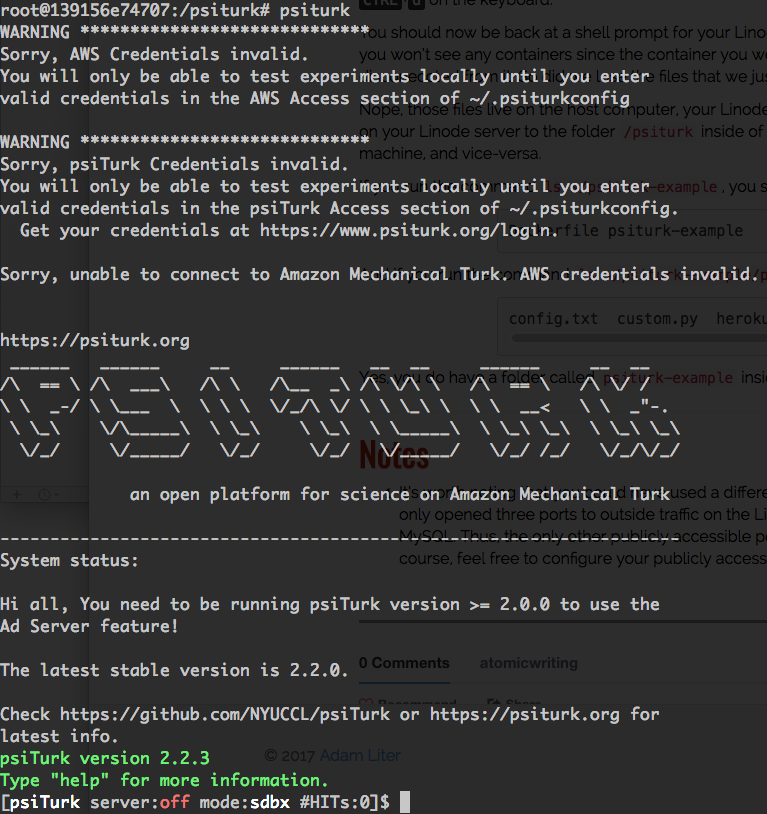
You will then see something like the following:</p>

<p><img src="https://atomicwriting.com/assets/img/psiturk-shell.png" alt="Messages from starting psiturk shell" width="70%" style="display:block; margin: 0 auto;" /></p>

<p>And from here you can create and run your experiment! One final important
thing to note is that when running an experiment, you’ll want to make sure
that the container is still running and that <code class="language-plaintext highlighter-rouge">psiturk</code> is running inside of
it. After you’ve deployed your experiment via the psiTurk shell from inside
of the container, you can detach from the container and leave it running in
the background by hitting <kbd>CTRL</kbd>+<kbd>p</kbd> and then
<kbd>CTRL</kbd>+<kbd>q</kbd>.<sup id="fnref:2" role="doc-noteref"><a href="#fn:2" class="footnote" rel="footnote">2</a></sup></p>

<p>That’s it for this post! As always, please feel free to comment with any
questions! And, if you do sign up for a Linode account, please consider
signing up using my <a href="https://www.linode.com/?r=54ae7f8d79dc2dcea5d7778008242b6be864a8cf" target="_blank">referral link</a>.
Thanks! 🐙</p>

<hr />

<h2 id="notes">Notes</h2>

<!-- Local Variables: -->
<!-- mode: markdown -->
<!-- coding: utf-8 -->
<!-- fill-column: 72 -->
<!-- End: -->
<div class="footnotes" role="doc-endnotes">
  <ol>
    <li id="fn:1" role="doc-endnote">
      <p>It looks a bit ugly because the forward slashes have to be
  escaped with back slashes. <a href="#fnref:1" class="reversefootnote" role="doc-backlink">&#8617;</a></p>
    </li>
    <li id="fn:2" role="doc-endnote">
      <p>Because the <code class="language-plaintext highlighter-rouge">docker-compose.yml</code> file was set up to restart the
  <code class="language-plaintext highlighter-rouge">psiturk-example</code> service every time it is stopped (accidentally
  or not), the service will be restarted even if you exit and kill
  the container. <em>However</em>, the psiTurk shell will not
  automatically be started when the container gets restarted by
  <code class="language-plaintext highlighter-rouge">docker-compose</code>, which is why it is important that you disconnect
  in this way. <a href="#fnref:2" class="reversefootnote" role="doc-backlink">&#8617;</a></p>
    </li>
  </ol>
</div>]]></content><author><name>Adam Liter</name></author><category term="research" /><category term="tech" /><category term="linode" /><category term="docker" /><category term="experiments" /><category term="mturk" /><category term="psiturk" /><category term="mysql" /><summary type="html"><![CDATA[This is the fourth and final post in a series of blog posts about how to run an experiment with Amazon Mechanical Turk, using psiTurk. This post will cover how to set up a MySQL container and how to hook it up to talk to the psiTUrk container, using Docker Compose.]]></summary></entry><entry><title type="html">Setting up the psiTurk Docker container</title><link href="https://atomicwriting.com/2017/09/17/psiturk-docker-container/" rel="alternate" type="text/html" title="Setting up the psiTurk Docker container" /><published>2017-09-17T21:00:00+00:00</published><updated>2017-09-17T21:00:00+00:00</updated><id>https://atomicwriting.com/2017/09/17/psiturk-docker-container</id><content type="html" xml:base="https://atomicwriting.com/2017/09/17/psiturk-docker-container/"><![CDATA[<p>This is the third post
in <a href="/tutorials/psiturk-docker-linode" target="_blank">a series of blog posts</a>
about how to run an experiment
with <a href="https://www.mturk.com/mturk/welcome" target="_blank">Amazon Mechanical Turk</a>, using
<a href="https://psiturk.org/" target="_blank">psiTurk</a>.</p>

<p>This post will cover how to run the psiTurk example experiment
inside of a Docker container.<!--read more--></p>

<h2 id="setting-up-the-psiturk-docker-container">Setting up the psiTurk Docker container</h2>

<p>Now that we have Docker installed, let’s work on setting up the psiTurk
Docker container. First, create a directory for your experiment on your
Linode server:</p>

<figure class="highlight"><pre><code class="language-shell" data-lang="shell"><span class="nb">mkdir</span> ~/psiturk-example</code></pre></figure>

<p>Next, change to the newly created directory and create a file called
<code class="language-plaintext highlighter-rouge">Dockerfile</code> in that directory:</p>

<figure class="highlight"><pre><code class="language-shell" data-lang="shell"><span class="nb">cd</span> ~/psiturk-example
<span class="nb">touch </span>Dockerfile</code></pre></figure>

<p>A <code class="language-plaintext highlighter-rouge">Dockerfile</code> is a set of instructions for building Docker images.  An
image is the basis for a container. You can think of a running Docker
container as an instance of a Docker image. (See
this <a href="https://stackoverflow.com/q/23735149/2571049" target="_blank">Stack Overflow question</a>
for more discussion.) The set of instructions in the <code class="language-plaintext highlighter-rouge">Dockerfile</code> is
what allows this process to be automated and reproducible.</p>

<p>Now, we want to create a Docker image that runs psiTurk and serves our
experiment. I’ve already created a publicly available Docker image with
psiTurk that can be used as the basis for other Docker images, so the
<code class="language-plaintext highlighter-rouge">Dockerfile</code> that we have to create is pretty simple, consisting of
only two lines. In the end, your <code class="language-plaintext highlighter-rouge">Dockerfile</code> should look like this:</p>

<figure class="highlight"><pre><code class="language-shell" data-lang="shell">FROM adamliter/psiturk:latest
VOLUME <span class="o">[</span><span class="s2">"/psiturk"</span><span class="o">]</span></code></pre></figure>

<p>You can add the above content to your <code class="language-plaintext highlighter-rouge">Dockerfile</code> by running the
following command:</p>

<figure class="highlight"><pre><code class="language-shell" data-lang="shell"><span class="nb">echo</span> <span class="nt">-e</span> <span class="s1">'FROM adamliter/psiturk:latest\nVOLUME ["/psiturk"]'</span> <span class="o">&gt;</span> Dockerfile</code></pre></figure>

<p>The <code class="language-plaintext highlighter-rouge">FROM</code> instruction tells Docker to build the image on top of the
publicly available image called <code class="language-plaintext highlighter-rouge">adamliter/psiturk:latest</code>, which is an
image that contains the latest version of psiTurk.</p>

<p>The <code class="language-plaintext highlighter-rouge">VOLUME</code> instruction tells Docker to expect the user to map a folder
from the host computer to the folder <code class="language-plaintext highlighter-rouge">/psiturk</code> inside the Docker
container. This will allow you to edit the experiment files on the host
computer (<em>i.e.</em>, the Linode server) and have these changes
automatically reflected inside the container itself! 🎈</p>

<p>Now that you have your Dockerfile set up, go ahead and run the following
command:</p>

<figure class="highlight"><pre><code class="language-shell" data-lang="shell">docker build <span class="nt">-t</span> &lt;YOUR_USERNAME&gt;/psiturk-example .</code></pre></figure>

<p>The <code class="language-plaintext highlighter-rouge">docker build</code> command is used to build images from <code class="language-plaintext highlighter-rouge">Dockerfile</code>s.
The <code class="language-plaintext highlighter-rouge">-t</code> flag allows you to specify the name of the image. If you ever
intend on making this publicly available on
<a href="https://hub.docker.com/" target="_blank">DockerHub</a>, you should replace
<code class="language-plaintext highlighter-rouge">&lt;YOUR_USERNAME&gt;</code> with the username for your DockerHub account.
If you don’t have a DockerHub account and/or don’t intend to ever make
it publicly available, it’s still a good idea to replcae
<code class="language-plaintext highlighter-rouge">&lt;YOUR_USERNAME&gt;</code> with something. You could use the same username as
the account on your Linode server that you’re currently signed in to.
Finally, the <code class="language-plaintext highlighter-rouge">.</code> at the end of the command just tells <code class="language-plaintext highlighter-rouge">docker</code> to look
for a <code class="language-plaintext highlighter-rouge">Dockerfile</code> in the current directory.</p>

<p>After this runs, you’ll now have a Docker image containing psiTurk
and a prespecified place for where you ought to mount your experiment
files. Let’s move on to generating and setting up the experiment files.</p>

<h2 id="setting-up-the-experiment-files">Setting up the experiment files</h2>

<p>For the purposes of this blog post, we’re just going to use the default
experiment from psiTurk, which you can generate with the psiTurk command
<code class="language-plaintext highlighter-rouge">psiturk-setup-example</code>. However, you currently don’t have Python
installed on your Linode server, much less psiTurk! But Python and
psiTurk are installed inside the Docker image that you just built! 👀</p>

<p>Let’s see how we can take advantage of that fact. First, make sure that
your <code class="language-plaintext highlighter-rouge">~/psiturk-example</code> directory only contains the <code class="language-plaintext highlighter-rouge">Dockerfile</code>:</p>

<figure class="highlight"><pre><code class="language-shell" data-lang="shell"><span class="nb">ls</span> ~/psiturk-example</code></pre></figure>

<p>The <code class="language-plaintext highlighter-rouge">ls</code> command should just return <code class="language-plaintext highlighter-rouge">Dockerfile</code>. Next, run the
following command from inside of the <code class="language-plaintext highlighter-rouge">~/psiturk-example</code> directory. You
can run the command <code class="language-plaintext highlighter-rouge">cd ~/psiturk-example</code> first, if you want to make
sure you’re in that directory:</p>

<figure class="highlight"><pre><code class="language-shell" data-lang="shell"><span class="nb">cd</span> ~/psiturk-example
docker run <span class="nt">-i</span> <span class="nt">-t</span> <span class="nt">--rm</span> <span class="nt">--name</span> psiturk-example <span class="nt">-p</span> 22362:22362 <span class="nt">-v</span> <span class="si">$(</span><span class="nb">pwd</span><span class="si">)</span>:/psiturk &lt;YOUR_USERNAME&gt;/psiturk-example</code></pre></figure>

<p>Let’s break down the <code class="language-plaintext highlighter-rouge">docker run</code> command, starting from the back. The
part at the very end of the command (<code class="language-plaintext highlighter-rouge">&lt;YOUR_USERNAME&gt;/psiturk-example</code>)
is the name of image that is the basis for the container that you’re
instantiating and running (remember, a container is a running instance
of an image). So, whatever you named your image in the command above,
you’ll want to make sure that it is the same name here.</p>

<p>The next part is the <code class="language-plaintext highlighter-rouge">-v</code> flag. This is short for <code class="language-plaintext highlighter-rouge">--volume</code>, and it is
what allows you to map a directory on the host folder to a directory
inside the container. In this case, <code class="language-plaintext highlighter-rouge">$(pwd)</code> is being mapped to the
folder <code class="language-plaintext highlighter-rouge">/psiturk</code> inside of the container. <code class="language-plaintext highlighter-rouge">$(pwd)</code> is a command that
evaluates to your current working directory, which should be something
like <code class="language-plaintext highlighter-rouge">/home/&lt;YOUR_USERNAME&gt;/psiturk-example</code>.</p>

<p>The <code class="language-plaintext highlighter-rouge">-p</code> flag (short for <code class="language-plaintext highlighter-rouge">--publish</code>) “publishes” a port from the
container to a port on the host computer. Like with the <code class="language-plaintext highlighter-rouge">-v</code> flag, the
part on the left side of the <code class="language-plaintext highlighter-rouge">:</code> is for the host computer, and the stuff
on the right side of the <code class="language-plaintext highlighter-rouge">:</code> is for the container. Mapping port <code class="language-plaintext highlighter-rouge">22362</code>
on the host computer to port <code class="language-plaintext highlighter-rouge">22362</code> of the container just means that
the traffic on port <code class="language-plaintext highlighter-rouge">22362</code> of the host computer will be passed to port
<code class="language-plaintext highlighter-rouge">22362</code> of the Docker container.<sup id="fnref:1" role="doc-noteref"><a href="#fn:1" class="footnote" rel="footnote">1</a></sup></p>

<p>The next part from the back of the command is <code class="language-plaintext highlighter-rouge">--name psiturk-example</code>.
This one is pretty straightforward. The <code class="language-plaintext highlighter-rouge">--name</code> flag allows you to
specify a name for the container. In principle, it could be whatever you
want it to be. It doesn’t have to be related to the name of the image
(which is <code class="language-plaintext highlighter-rouge">&lt;YOUR_USERNAME&gt;/psiturk-example</code>), but it is nonetheless
often convenient to give the container a name that is related to the
image, which is why I’ve named the container <code class="language-plaintext highlighter-rouge">psiturk-example</code>.</p>

<p>Working backwards still, the next part of the command is <code class="language-plaintext highlighter-rouge">--rm</code>. The
<code class="language-plaintext highlighter-rouge">--rm</code> flag simply means that the container will be automatically
removed when it is exited. This helps reduce clutter so you don’t
accidentally end up with a bunch of running Docker containers that
you’ve long since forgotten about.</p>

<p>Lastly, the <code class="language-plaintext highlighter-rouge">-i</code> and <code class="language-plaintext highlighter-rouge">-t</code> flags to the <code class="language-plaintext highlighter-rouge">docker run</code> command are related,
so I will talk about them together. The <code class="language-plaintext highlighter-rouge">-t</code> flag allocates a
psuedo-TTY, which basically just means that you are given a shell where
you can execute commands <em>inside of</em> the Docker container. The <code class="language-plaintext highlighter-rouge">-i</code> flag
keeps the <code class="language-plaintext highlighter-rouge">STDIN</code> pipe open if you detach from the running Docker
container, meaning you can reattach to the container and continue
executing commands in that same shell.</p>

<p>After running this command, you should now be looking at a shell prompt
that looks something like this:</p>

<div class="language-plaintext highlighter-rouge"><div class="highlight"><pre class="highlight"><code>root@66e24f5bfce1:/psiturk#
</code></pre></div></div>

<p>This means you’re signed in as <code class="language-plaintext highlighter-rouge">root</code> to the machine <code class="language-plaintext highlighter-rouge">66e24f5bfce1</code>,
and you’re currently in the directory <code class="language-plaintext highlighter-rouge">/psiturk</code> (the alphanumeric
string that is the name of your container will be different for
you). Congratulations, you’re inside the Docker container!
🔧  🎉</p>

<p>Remember that this container includes both Python and psiTurk, so we
can run psiTurk commands. In particular, run the following command from
inside of the Docker container:</p>

<figure class="highlight"><pre><code class="language-shell" data-lang="shell">psiturk-setup-example</code></pre></figure>

<p>This will create a directory called <code class="language-plaintext highlighter-rouge">psiturk-example</code>, which contains
the experiment files for the example experiment that ships with psiTurk.</p>

<p>You should also see a message indicating that a file called
<code class="language-plaintext highlighter-rouge">~/.psiturkconfig</code> was created. I’ve configured the Docker container
that <em>your</em> Docker container is built on top of to expect the
<code class="language-plaintext highlighter-rouge">.psiturkconfig</code> file to be in the same directory as the experiment
files. So, go ahead and move it there by running the following command
from inside of the Docker container:</p>

<figure class="highlight"><pre><code class="language-shell" data-lang="shell"><span class="nb">mv</span> ~/.psiturkconfig /psiturk/psiturk-example/</code></pre></figure>

<p>After doing that, go ahead and disconnect from the Docker container by
either typing <code class="language-plaintext highlighter-rouge">exit</code> and hitting <kbd>ENTER</kbd> or by hitting
<kbd>CTRL</kbd>+<kbd>d</kbd> on the keyboard.</p>

<p>You should now be back at a shell prompt for your Linode server. If you
run the command <code class="language-plaintext highlighter-rouge">docker ps</code> to show all containers, you won’t see any
containers since the container you were just in was configured to remove
itself (<code class="language-plaintext highlighter-rouge">--rm</code>) when you disconeccted from it. So did we lose the files
that we just created inside of the container?!</p>

<p>Nope, those files live on the host computer, your Linode server. This is
because we mapped the folder <code class="language-plaintext highlighter-rouge">~/psiturk-example</code> on your Linode server
to the folder <code class="language-plaintext highlighter-rouge">/psiturk</code> inside of the container. All changes inside
the container appear on the host machine, and vice-versa.</p>

<p>If you run the command <code class="language-plaintext highlighter-rouge">ls ~/psiturk-example</code>, you should see:</p>

<div class="language-plaintext highlighter-rouge"><div class="highlight"><pre class="highlight"><code>Dockerfile psiturk-example
</code></pre></div></div>

<p>And if you run the command <code class="language-plaintext highlighter-rouge">ls ~/psiturk-example/psiturk-example</code>, you
should see:</p>

<div class="language-plaintext highlighter-rouge"><div class="highlight"><pre class="highlight"><code>config.txt  custom.py  herokuapp.py  herokuapp.pyc  Procfile  requirements.txt  runtime.txt  static  templates
</code></pre></div></div>

<p>Yes, you do have a folder called <code class="language-plaintext highlighter-rouge">psiturk-example</code> inside of a folder
called <code class="language-plaintext highlighter-rouge">psiturk-example</code>, but so it goes … <code class="language-plaintext highlighter-rouge">¯\_(ツ)_/¯</code></p>

<p>The folder <code class="language-plaintext highlighter-rouge">~/psiturk-example/psiturk-example</code> is what contains the
experiment files for the example experiment that psiTurk automatically
generated.</p>

<p>Let’s go ahead and make one small edit to the <code class="language-plaintext highlighter-rouge">config.txt</code> file in that
folder. In the <code class="language-plaintext highlighter-rouge">config.txt</code> file, there’s a line that says
<code class="language-plaintext highlighter-rouge">host = localhost</code>. I’ve never had any luck getting psiTurk to work with
this default setting. Instead, we’re going to change this line to say
<code class="language-plaintext highlighter-rouge">host = 0.0.0.0</code>.</p>

<p>Since the files were all created by the <code class="language-plaintext highlighter-rouge">root</code> user inside the Docker
container, your user currently does not have sufficient permission to
edit the files. Go ahead and change the ownership of the files by
running the following command on your Linode server (replacing both
instances of <code class="language-plaintext highlighter-rouge">your_username</code> with the username for your account on your
Linode server):</p>

<figure class="highlight"><pre><code class="language-shell" data-lang="shell"><span class="nb">sudo chown</span> <span class="nt">-R</span> your_username:your_username ~/psiturk-example</code></pre></figure>

<p>Now you can edit the <code class="language-plaintext highlighter-rouge">config.txt</code> file to change the line to say
<code class="language-plaintext highlighter-rouge">0.0.0.0</code> for the <code class="language-plaintext highlighter-rouge">host</code>. Do so by running the following command on your
Linode server:</p>

<figure class="highlight"><pre><code class="language-shell" data-lang="shell"><span class="nb">sed</span> <span class="nt">-i</span> <span class="s1">'s/host = localhost/host = 0.0.0.0/'</span> ~/psiturk-example/psiturk-example/config.txt</code></pre></figure>

<p>We are now finally ready to try out the example experiment! To do so,
restart the docker container. Note that the command this time is going
to be slightly different!</p>

<figure class="highlight"><pre><code class="language-shell" data-lang="shell"><span class="nb">cd</span> ~/psiturk-example
docker run <span class="nt">-i</span> <span class="nt">-t</span> <span class="nt">--rm</span> <span class="nt">--name</span> psiturk-example <span class="nt">-p</span> 22362:22362 <span class="nt">-v</span> <span class="si">$(</span><span class="nb">pwd</span><span class="si">)</span>/psiturk-example:/psiturk &lt;YOUR_USERNAME&gt;/psiturk-example</code></pre></figure>

<p>The command is almost the same, except that this time, you’re mapping
<code class="language-plaintext highlighter-rouge">$(pwd)/psiturk-example</code> on the host computer to <code class="language-plaintext highlighter-rouge">/psiturk</code> inside of
the container (instead of just <code class="language-plaintext highlighter-rouge">$(pwd)</code>). The <code class="language-plaintext highlighter-rouge">/psiturk</code> directory
inside of the container should contain the experiment files; you
don’t want to have the experiment files nested one directory down. So
we want to map the nested <code class="language-plaintext highlighter-rouge">psiturk-example</code> directory on the host
machine to the <code class="language-plaintext highlighter-rouge">/psiturk</code> directory inside of the container.</p>

<p>You should now be looking at a shell prompt for the Docker container,
and if you run the <code class="language-plaintext highlighter-rouge">ls</code> command you should see the experiment files:</p>

<div class="language-plaintext highlighter-rouge"><div class="highlight"><pre class="highlight"><code>config.txt  custom.py  herokuapp.py  herokuapp.pyc  Procfile  requirements.txt  runtime.txt  static  templates
</code></pre></div></div>

<p>Go ahead and start the psiTurk shell by running the command <code class="language-plaintext highlighter-rouge">psiturk</code>
inside of your Docker container. You should now see something like the
following:</p>

<p><img src="https://atomicwriting.com/assets/img/psiturk-shell.png" alt="Messages from starting psiturk shell" width="70%" style="display:block; margin: 0 auto;" /></p>

<p>Again, this tutorial series assumes familiarity with how psiTurk works, so
if you’re not familiar with the psiTurk shell, I suggest you spend some
time reading
the <a href="https://psiturk.readthedocs.io/en/stable/" target="_blank">psiTurk documentation</a>.</p>

<p>Once the psiTurk shell is running, type the command <code class="language-plaintext highlighter-rouge">server on</code> from
inside of the psiTurk shell:</p>

<figure class="highlight"><pre><code class="language-shell" data-lang="shell">server on</code></pre></figure>

<p>If all goes well, you should see a message that says:</p>

<div class="language-plaintext highlighter-rouge"><div class="highlight"><pre class="highlight"><code>Now serving on http://0.0.0.0:22362
</code></pre></div></div>

<p>This means that the psiTurk example experiment is accessible on port
<code class="language-plaintext highlighter-rouge">22362</code> of the Docker container … which is published to port <code class="language-plaintext highlighter-rouge">22362</code>
of your Linode server … which is publicly accessible … which means
that you can access the example experiment by navigating to the
following URL in a browser: <code class="language-plaintext highlighter-rouge">http://&lt;LINODE_IP_ADDRESS&gt;:22362</code>
(replacing <code class="language-plaintext highlighter-rouge">&lt;LINODE_IP_ADDRESS&gt;</code> with the static IP address of your
Linode server)! 🙌  🍾</p>

<p>As exciting is this is, you might want to wait on popping the champagne.
(Sorry, I got ahead of myself.)</p>

<p>We still need to set up a MySQL Docker container and hook it up to the
psiTurk experiment, which will be covered in the <a href="/2017/10/01/mysql-container-and-docker-compose/" target="_blank">next
post</a>.</p>

<p>For now, go ahead and turn the psiTurk server off by running
the following command:</p>

<figure class="highlight"><pre><code class="language-shell" data-lang="shell">server off</code></pre></figure>

<p>Then hit <kbd>CTRL</kbd>+<kbd>d</kbd> twice in order to exit the psiTurk
shell and then the Docker container.</p>

<p>That’s it for this post! In the <a href="/2017/10/01/mysql-container-and-docker-compose/">final post of this series</a>,
I’ll cover how to set up a Docker container for MySQL and hook
everything together. As always, please feel free to comment with any
questions! And, if you do sign up for a Linode account, please consider
signing up using my <a href="https://www.linode.com/?r=54ae7f8d79dc2dcea5d7778008242b6be864a8cf" target="_blank">referral link</a>.
Thanks! 🤓</p>

<hr />

<h2 id="notes">Notes</h2>

<!-- Local Variables: -->
<!-- mode: markdown -->
<!-- coding: utf-8 -->
<!-- fill-column: 72 -->
<!-- End: -->
<div class="footnotes" role="doc-endnotes">
  <ol>
    <li id="fn:1" role="doc-endnote">
      <p>It’s worth noting that you could have used a different host port
  here. However, in
  the <a href="/2017/08/20/set-up-linode-for-psiturk/" target="_blank">first blog post</a> in this
  series, we only opened two ports to outside traffic on the
  Linode server: <code class="language-plaintext highlighter-rouge">22</code> and <code class="language-plaintext highlighter-rouge">22362</code>. <code class="language-plaintext highlighter-rouge">22</code> is for SSH. Thus, the only
  other publicly accessible port on your Linode server is <code class="language-plaintext highlighter-rouge">22362</code>,
  so that’s what we must use. Of course, feel free to configure
  your publicly accessible ports differently, if you’re
  comfortable doing so and have good reason for it. <a href="#fnref:1" class="reversefootnote" role="doc-backlink">&#8617;</a></p>
    </li>
  </ol>
</div>]]></content><author><name>Adam Liter</name></author><category term="research" /><category term="tech" /><category term="linode" /><category term="docker" /><category term="experiments" /><category term="mturk" /><category term="psiturk" /><summary type="html"><![CDATA[This is the third post in a series of blog posts about how to run an experiment with Amazon Mechanical Turk, using psiTurk. This post will cover how to run the psiTurk example experiment inside of a Docker container.]]></summary></entry><entry><title type="html">Installing Docker and Docker Compose on Linode</title><link href="https://atomicwriting.com/2017/09/03/installing-docker-and-docker-compose/" rel="alternate" type="text/html" title="Installing Docker and Docker Compose on Linode" /><published>2017-09-03T21:00:00+00:00</published><updated>2017-09-03T21:00:00+00:00</updated><id>https://atomicwriting.com/2017/09/03/installing-docker-and-docker-compose</id><content type="html" xml:base="https://atomicwriting.com/2017/09/03/installing-docker-and-docker-compose/"><![CDATA[<p>This is the second post
in <a href="/tutorials/psiturk-docker-linode" target="_blank">a series of blog posts</a>
about how to run an experiment
with <a href="https://www.mturk.com/mturk/welcome" target="_blank">Amazon Mechanical Turk</a>, using
<a href="https://psiturk.org/" target="_blank">psiTurk</a>.</p>

<p>This post will cover how to install <a href="https://www.docker.com/" target="_blank">Docker</a>
and <a href="https://docs.docker.com/compose/" target="_blank">Docker Compose</a>, which we will
use to run the two programs necessary for deploying an
experiment with psiTurk: MySQL and psiTurk itself.
<!--read more--></p>

<p>This picks up from the <a href="/2017/08/20/set-up-linode-for-psiturk/" target="_blank">previous post</a>,
where we configured a virtual private server on Linode.</p>

<h2 id="what-is-docker-and-why-use-it">What is Docker and why use it?</h2>

<p>Docker is a software container platform. What this means is that Docker
allows you to run programs inside of containers that are isolated from
the host computer. Docker allows you to specify how exactly to build the
container, which helps ensure that the program you want to run
inside of the container has access to everything it needs.</p>

<p>This is useful for several reasons. For example, it ensures that the
program runs exactly the same way on two completely different computers;
it also allows you to automate the creation of a new development or
production environment. (For more information, head over to <a href="https://www.docker.com/what-docker" target="_blank">Docker’s
website</a>.)</p>

<p>There’s also a Docker tool called Docker Compose, which allows you to
run multiple containers on the same host machine in an automated and
coordinated manner. Using Docker Compose will thus allow for deploying
both a database and psiTurk itself on the Linode server that you’ve
set up.</p>

<h2 id="the-application-stack-mysql-and-psiturk">The application stack: MySQL and psiTurk</h2>

<p>As you may know, with psiTurk it is necessary to hook your experiment
up to a database so that you can record the data from participants as
they participate. By default, psiTurk is configured to use SQLite, which
is not the most robust database. Particularly, it is a bad idea to use
SQLite when you actually deploy your experiment to Amazon Mechanical
Turk. SQLite won’t do well if multiple people are doing the experiment
at the same time; you might lose data. Instead, you want to use MySQL,
which is a more robust database.</p>

<p>In addition to running MySQL, you’ll also need to run psiTurk itself.
Creating a Docker container for each of these programs will be covered
later in <a href="/tutorials/psiturk-docker-linode" target="_blank">the series</a>.
This post focuses on installing <code class="language-plaintext highlighter-rouge">docker</code> and <code class="language-plaintext highlighter-rouge">docker-compose</code>.</p>

<h2 id="installing-docker">Installing Docker</h2>

<p>If you’re not already logged in to your Linode account that you set up
in the <a href="/2017/08/20/set-up-linode-for-psiturk/" target="_blank">previous post</a>, go ahead and
log in to it using SSH (again, replace the 0’s with your server’s IP
address and <code class="language-plaintext highlighter-rouge">your_username</code> with your username):</p>

<figure class="highlight"><pre><code class="language-shell" data-lang="shell">ssh your_username@00.000.000.00</code></pre></figure>

<p>Next, you can install Docker by <code class="language-plaintext highlighter-rouge">curl</code>-ing and running a script that the
Docker folks maintain for installations:</p>

<figure class="highlight"><pre><code class="language-shell" data-lang="shell">curl <span class="nt">-sSL</span> https://get.docker.com/ | sh</code></pre></figure>

<p>At the end, you’ll probably see a message suggesting that you add
yourself to the newly created <code class="language-plaintext highlighter-rouge">docker</code> group. Doing so would allow you
to run <code class="language-plaintext highlighter-rouge">docker</code> commands without having to use <code class="language-plaintext highlighter-rouge">sudo</code>. If you do decide
to do this, you can add yourself to the <code class="language-plaintext highlighter-rouge">docker</code> group by running the
following command (replacing <code class="language-plaintext highlighter-rouge">your_username</code> with your username):</p>

<figure class="highlight"><pre><code class="language-shell" data-lang="shell"><span class="nb">sudo </span>usermod <span class="nt">-aG</span> docker your_username</code></pre></figure>

<p>In order for this to take effect, you’ll need to log out and log back
in.</p>

<p>Next, you’ll need to install Docker Compose. This is done by <code class="language-plaintext highlighter-rouge">curl</code>-ing
a file from GitHub and saving it to your server, after which you’ll need
to give it executable permissions. You’ll want to download the latest
version of Docker Compose, which you can find by
following <a href="https://github.com/docker/compose/releases/latest" target="_blank">this link</a>. After
you follow that link, you should see some commands to execute. At the
time of writing, the most recent version of Docker Compose is <code class="language-plaintext highlighter-rouge">1.15.0</code>,
so the first command to run is:</p>

<figure class="highlight"><pre><code class="language-shell" data-lang="shell"><span class="nb">sudo </span>bash <span class="nt">-c</span> <span class="s2">"curl -L https://github.com/docker/compose/releases/download/1.15.0/docker-compose-</span><span class="sb">`</span><span class="nb">uname</span> <span class="nt">-s</span><span class="sb">`</span><span class="s2">-</span><span class="sb">`</span><span class="nb">uname</span> <span class="nt">-m</span><span class="sb">`</span><span class="s2"> &gt; /usr/local/bin/docker-compose"</span></code></pre></figure>

<p>If you’re reading this in the future, the command will likely be
slightly different in order to reflect the most recent version. You’ll
have to change the version number after <code class="language-plaintext highlighter-rouge">/download/</code> in the
URL. Moreover, note that the command above is slightly different than
what is suggested on
the
<a href="https://github.com/docker/compose/releases/latest" target="_blank">GitHub release page</a>. There,
they just suggest the part of the command which is in quotes
above. However, since the results of the <code class="language-plaintext highlighter-rouge">curl</code> are being redirected to
the file <code class="language-plaintext highlighter-rouge">/usr/local/bin/docker-compose</code>, you’ll need <code class="language-plaintext highlighter-rouge">root</code> permissions
in order to save the file because <code class="language-plaintext highlighter-rouge">/usr/local/bin</code> is a directory that
is owned by <code class="language-plaintext highlighter-rouge">root</code>. This isn’t quite as simple as just running
<code class="language-plaintext highlighter-rouge">sudo curl ... &gt; /usr/local/bin/docker-comopose</code> because that only
executes the <code class="language-plaintext highlighter-rouge">curl</code> command as <code class="language-plaintext highlighter-rouge">root</code>. It doesn’t do the redirecting
(<code class="language-plaintext highlighter-rouge">&gt;</code>) as <code class="language-plaintext highlighter-rouge">root</code>. To get the redirect to happen with <code class="language-plaintext highlighter-rouge">root</code> permissions,
you’ll need to run <code class="language-plaintext highlighter-rouge">sudo bash -c "COMMAND HERE"</code>, replacing
<code class="language-plaintext highlighter-rouge">COMMAND HERE</code> with the redirected <code class="language-plaintext highlighter-rouge">curl</code> command.</p>

<p>And just to note one last time: if you’re reading this in the future,
you will again want to
follow <a href="https://github.com/docker/compose/releases/latest" target="_blank">this link</a> in order to
get the latest version.</p>

<p>Next, after <code class="language-plaintext highlighter-rouge">curl</code>-ing the file, you’ll need to make it executable with
the following command:</p>

<figure class="highlight"><pre><code class="language-shell" data-lang="shell"><span class="nb">sudo chmod</span> +x /usr/local/bin/docker-compose</code></pre></figure>

<p>Now you should be able to run the <code class="language-plaintext highlighter-rouge">docker-compose</code> command. Congrats!</p>

<p>In the <a href="/2017/09/17/psiturk-docker-container/" target="_blank">next post</a> in the
<a href="/tutorials/psiturk-docker-linode" target="_blank">series</a>, you’ll learn how to
set up the psiTurk Docker container.</p>

<p>Please feel free to comment with any questions! And, if you are
finding this information helpful, please consider signing
up for Linode using my <a href="https://www.linode.com/?r=54ae7f8d79dc2dcea5d7778008242b6be864a8cf" target="_blank">referral link</a>.
Thanks! 🙇</p>

<!-- Local Variables: -->
<!-- mode: markdown -->
<!-- coding: utf-8 -->
<!-- fill-column: 72 -->
<!-- End: -->]]></content><author><name>Adam Liter</name></author><category term="research" /><category term="tech" /><category term="linode" /><category term="docker" /><category term="experiments" /><category term="mturk" /><category term="psiturk" /><category term="mysql" /><summary type="html"><![CDATA[This is the second post in a series of blog posts about how to run an experiment with Amazon Mechanical Turk, using psiTurk. This post will cover how to install Docker and Docker Compose, which we will use to run the two programs necessary for deploying an experiment with psiTurk: MySQL and psiTurk itself.]]></summary></entry><entry><title type="html">Setting up a Linode server for running an Amazon Mechanical Turk experiment with psiTurk</title><link href="https://atomicwriting.com/2017/08/20/set-up-linode-for-psiturk/" rel="alternate" type="text/html" title="Setting up a Linode server for running an Amazon Mechanical Turk experiment with psiTurk" /><published>2017-08-20T21:00:00+00:00</published><updated>2017-08-20T21:00:00+00:00</updated><id>https://atomicwriting.com/2017/08/20/set-up-linode-for-psiturk</id><content type="html" xml:base="https://atomicwriting.com/2017/08/20/set-up-linode-for-psiturk/"><![CDATA[<p>This is the first post
in <a href="/tutorials/psiturk-docker-linode" target="_blank">a series of blog posts</a>
about how to run an experiment
with <a href="https://www.mturk.com/mturk/welcome" target="_blank">Amazon Mechanical Turk</a>, using
<a href="https://psiturk.org/" target="_blank">psiTurk</a>.</p>

<p>This first post will cover setting up a server to host the experiment.
<!--read more-->
If you’re unfamiliar with psiTurk, psiTurk is, according to the
<a href="https://psiturk.readthedocs.io/en/stable/forward.html#what-is-psiturk" target="_blank">documentation</a>:</p>

<blockquote>
  <div class="small">
    <p>
      designed to help you run fully-customized and dynamic
      web-experiments on [Amazon Mechanical Turk]. Specifically, it
      allows you to:
    </p>
    <ol>
      <li>Run a web server for your experiment</li>
      <li>Test your experiment</li>
      <li>
        Interact with [Amazon Mechanical Turk] to recruit, post [Human
        Intelligence Task]s, filter, and pay participants ([Amazon
        Mechanical Turk] workers)
      </li>
      <li>Manage databases and export data</li>
    </ol>
    <p>
      <strong>psiTurk</strong> also includes a powerful interactive
      command interface that lets you manage most of your [Amazon
      Mechanical Turk] activity.
    </p>
  </div>
</blockquote>

<p>In brief, psiTurk allows you to deploy more customized experiments to
Amazon Mechanical Turk. Fair warning, however: the following tutorial
assumes that you are relatively familiar with psiTurk. It also assumes
that you are comfortable with a little bit of programming and using
the command line on a computer.</p>

<p>In this first post, I will cover how to set up a web server, which is
where you will eventually run psiTurk.</p>

<h2 id="why-a-webserver">Why a webserver?</h2>

<p>First, let’s start with the question of why you need a web server to run
your experiment. There are at least two reasons. The first is that by
using a web server, you will (most likely) receive a static IP address.</p>

<p>If you’re unfamiliar with IP addresses, these are basically the phone
numbers of the internet. Each device that is connected to the internet
receieves an IP address. Moreover, URLs like <code class="language-plaintext highlighter-rouge">https://google.com</code> are
actually translated into an IP address when you go to visit that
website. At the time of writing this blog post, <code class="language-plaintext highlighter-rouge">https://google.com</code>
gets translated into the IP address <code class="language-plaintext highlighter-rouge">172.217.8.14</code>. So when you go to
<code class="language-plaintext highlighter-rouge">https://google.com</code>, you’re actually connecting to a computer whose IP
address is <code class="language-plaintext highlighter-rouge">172.217.8.14</code>. I’m not sure about you, but, for me, the URL
is a lot easier to remember than the IP address.</p>

<p>Now, what’s important about a static IP address is that, well, it’s
static; it doesn’t change. With the proliferation of computing devices,
there are way more devices connecting to the internet than there are
possible IP addresses. Thus, most personal computing devices end up
receiving a dynamic IP address from the internet service provider, based
on what IP addresses are available at the time when the device happens
to connect to the internet. (With routers, it’s a bit more complicated
than this, but that’s outside the scope of this blog post.)</p>

<p>So having a static IP address for your computer (or server) that is
running psiTurk will make things easier. Specifically, when you recruit
people on Amazon Mechanical Turk, you can point your participants to a
single address, without having to worry about that address possibly
having changed since you posted your experiment to Amazon Mechanical
Turk.<sup id="fnref:1" role="doc-noteref"><a href="#fn:1" class="footnote" rel="footnote">1</a></sup></p>

<p>So how do you get a static IP address? If you pay for
a <a href="https://en.wikipedia.org/wiki/Virtual_private_server" target="_blank">virtual private server</a>, you will most likely
get a static IP address. There are several companies that offer virtual
private servers, including <a href="https://linode.com/" target="_blank">Linode</a>
and <a href="https://digitalocean.com/" target="_blank">Digital Ocean</a>. Both of these
companies do give you a static IP address when you pay for a virtual
private server.</p>

<p>One alternative you may wish to consider is the possibility of receiving
a static IP address from your university. It is quite likely that your
university can provide you with a static IP address for a particular
computer. Then, you could configure a computer in your lab to have that
static IP address and to run psiTurk. This is not something I will cover
in this series since doing this is dependent upon the IT infrastructure
of your university as well as the operating system of the computer you
choose to use. If you do decide to do this, all future posts in this
blog series should nonetheless still be relevant and helpful.</p>

<p>A second reason you might wish to pay for a web server is because you
can pay for the resources you need. If you look at the <a href="https://www.linode.com/pricing" target="_blank">different
pricing options for Linode</a>, for
example, you’ll see that you can pay for more memory, more CPUs, more
storage, and more bandwidth. In particular, if you’re running a large
experiment, you might wish to consider a web server over a personal
computer with a static IP address from your university because you’re
likely to get better bandwidth through a company like Linode.</p>

<p>I happen to use Linode, not Digital Ocean, so the rest of this blog post
will cover how to set up a Linode account and provision a virtual
private server of our own.</p>

<h2 id="getting-a-linode-account">Getting a Linode account</h2>

<p>If you find this blog post or any other posts in this series useful, I
encourage you to sign up for Linode using <a href="https://www.linode.com/?r=54ae7f8d79dc2dcea5d7778008242b6be864a8cf" target="_blank">my referral
link</a>. If you choose to use the referral
link, thank you! 🎉   If you’d rather not, no worries! 😎 
I hope you still find this information useful.</p>

<h2 id="creating-a-linode">Creating a Linode</h2>

<p>After you create an account, you’ll need to create a Linode. Linode
actually has really good documentation for how to get started, so I
recommend that you follow the instructions
in <a href="https://www.linode.com/docs/getting-started/#create-a-linode" target="_blank">their documentation</a> for
provisioning a server.</p>

<p>I’d recommend that you choose to use the most recent version of Ubuntu,
which is one of the more popular versions of Linux.</p>

<h2 id="connecting-to-and-configuring-the-server">Connecting to and configuring the server</h2>

<p>The following instructions are largely taken out of the <a href="https://www.linode.com/docs/getting-started" target="_blank">“Getting
Started with Linode”</a> guide.
Especially if this blog post is old, I’d recommend that you simply read
that guide.</p>

<p>However, since the guide tries to be generic for all possible operating
systems, I’ve pulled out the instructions for Ubuntu and put them in
this blog post in an effort to be more helpful and condense the
information that you need in order to get started. Moreover, you’ll
minimally need to read the end of this blog post where you learn which
port you’ll need to open up for incoming connections for psiTurk.</p>

<p>Anyway, once you’ve provisioned and booted up your server from the
Linode interface, you’ll want to connect using SSH. SSH is a protocol
for connecting from one computer to another, using the command line.</p>

<p>In order to connect, you’ll need to know the IP address of your Linode
server, which you can find from the Linode website:</p>

<p><img src="https://atomicwriting.com/assets/img/linode-find-ip.png" alt="Find your Linode server's IP address" width="70%" style="display:block; margin: 0 auto;" /></p>

<p>In the example image shown, you’ll want to use the IPv4 address, which
is <code class="language-plaintext highlighter-rouge">96.126.108.123</code>. Of course, you’ll want to use the address you see
in your browser, not the address from this image!</p>

<p>To connect to your new server, open a command line and run the command,
replacing the 0’s with the IP address of your server:</p>

<figure class="highlight"><pre><code class="language-shell" data-lang="shell">ssh root@00.000.000.00</code></pre></figure>

<p>You’ll be given an authenticity warning, to which you should answer
<code class="language-plaintext highlighter-rouge">yes</code>. Then, you’ll be prompted for a password. Enter the password for
the root user that you created in the provisioning process.</p>

<p>Now, the first thing you’ll want to do to configure the server is
install software updates. You can do this on Ubuntu by running the
following commands:</p>

<figure class="highlight"><pre><code class="language-shell" data-lang="shell">apt-get update <span class="nt">-y</span> <span class="o">&amp;&amp;</span> apt-get upgrade <span class="nt">-y</span></code></pre></figure>

<p>Next, you’ll need to set the hostname of the computer. If you’re using
a version of Ubuntu equal to or more recent than 15.04, you can do this
with the following command, replacing <code class="language-plaintext highlighter-rouge">giraffe</code> with whatever you want
the name of your server to be:<sup id="fnref:2" role="doc-noteref"><a href="#fn:2" class="footnote" rel="footnote">2</a></sup></p>

<figure class="highlight"><pre><code class="language-shell" data-lang="shell">hostnamectl set-hostname giraffe</code></pre></figure>

<p>After this, you can also set up the correct timezone using the command:</p>

<figure class="highlight"><pre><code class="language-shell" data-lang="shell">dpkg-reconfigure tzdata</code></pre></figure>

<h2 id="securing-your-server">Securing your server</h2>

<p>You’ll also want to do some work to secure your server. The following is
also largely taken from the Linode documentation
for <a href="https://www.linode.com/docs/security/securing-your-server" target="_blank">“Securing Your Server”</a>,
but I’ve pulled out just the parts that are relevant for Ubuntu. Again,
however, if you’re reading this far in the future, you may wish to refer
to the Linode documentation directly.</p>

<p>You’ll first want to create a non-<code class="language-plaintext highlighter-rouge">root</code> user, which you can do with the
following command, replacing <code class="language-plaintext highlighter-rouge">your_username</code> with whatever user name you
want:</p>

<figure class="highlight"><pre><code class="language-shell" data-lang="shell">adduser your_username</code></pre></figure>

<p>You’ll then want to add the user to the <code class="language-plaintext highlighter-rouge">sudo</code> group, replacing
<code class="language-plaintext highlighter-rouge">your_username</code> with the name of the user that you just created:</p>

<figure class="highlight"><pre><code class="language-shell" data-lang="shell">adduser your_username <span class="nb">sudo</span></code></pre></figure>

<p>Next, you need to do some things on your personal computer, so
disconnect from the server:</p>

<figure class="highlight"><pre><code class="language-shell" data-lang="shell"><span class="nb">exit</span></code></pre></figure>

<p>Currently, you can connect to the server using the password of the
user that you just created, but it’s safer to only allow access with
SSH keys, not passwords.</p>

<p>To do this, you’ll want to create
an <a href="https://www.ssh.com/ssh/key/" target="_blank">SSH keypair</a> on your personal
computer. This creates two files: a public key and a private key.
You’ll want to upload the public key to your server, and you’ll want
to keep the private key safe on your computer.</p>

<p>To create the keypair, use the following commands on your personal
computer (not the server!), replacing <code class="language-plaintext highlighter-rouge">COMMENT HERE</code> with a comment
of your choice (such as the name of your personal computer):</p>

<figure class="highlight"><pre><code class="language-shell" data-lang="shell"><span class="nb">mkdir</span> <span class="nt">-p</span> ~/.ssh
<span class="nb">chmod </span>700 ~/.ssh
ssh-keygen <span class="nt">-t</span> rsa <span class="nt">-b</span> 4096 <span class="nt">-C</span> <span class="s2">"COMMENT HERE"</span></code></pre></figure>

<p>The <code class="language-plaintext highlighter-rouge">ssh-keygen</code> command will prompt you for some information, including
where to save the keypair and what passphrase to give the keypair. The
passphrase is used to unlock your private key, which is stored in an
encrypted format on disk. Choose a strong passphrase, and I’d recommend
using the default location for the keypair of <code class="language-plaintext highlighter-rouge">~/.ssh/id_rsa</code>. This will
save the public key to the file <code class="language-plaintext highlighter-rouge">~/.ssh/id_rsa.pub</code>, and the private
key to the file <code class="language-plaintext highlighter-rouge">~/.ssh/id_rsa</code>.</p>

<p>Next, you’ll need to reconnect to the Linode server so you can upload
your public key, replacing <code class="language-plaintext highlighter-rouge">your_username</code> with the name of the user you
created and the 0’s with the IP address of your server:</p>

<figure class="highlight"><pre><code class="language-shell" data-lang="shell">ssh your_username@00.000.000.00</code></pre></figure>

<p>For now, you’ll still login with your password for that user, but this
is what we will be changing momentarily.</p>

<p>On the server, you’ll also need to create an <code class="language-plaintext highlighter-rouge">~/.ssh</code> directory and set
the right permissions. Moreover, you’ll create a file called
<code class="language-plaintext highlighter-rouge">authorized_keys</code>, which is where you’ll put your public key from your
personal computer:</p>

<figure class="highlight"><pre><code class="language-shell" data-lang="shell"><span class="nb">mkdir</span> <span class="nt">-p</span> ~/.ssh
<span class="nb">chmod </span>700 ~/.ssh
<span class="nb">touch</span> ~/.ssh/authorized_keys
<span class="nb">chmod </span>600 ~/.ssh/authorized_keys</code></pre></figure>

<p>Now, in your command line program, open another window or tab so that
you have two shell sessions running. In the second shell session (which
should <strong>not</strong> be connected to your server), run the following command:</p>

<figure class="highlight"><pre><code class="language-shell" data-lang="shell"><span class="nb">cat</span> ~/.ssh/id_rsa.pub</code></pre></figure>

<p>This will print the contents of the file <code class="language-plaintext highlighter-rouge">~/.ssh/id_rsa.pub</code> to the
screen, which you can then copy and paste into the following command.
This command should be executed in the first shell session that is still
connected to your server, replacing the <code class="language-plaintext highlighter-rouge">CONTENTS OF id_rsa.pub FILE</code>
with what you just copied and pasted from the other shell sesssion:</p>

<figure class="highlight"><pre><code class="language-shell" data-lang="shell"><span class="nb">echo</span> <span class="s2">"CONTENTS OF id_rsa.pub FILE"</span> <span class="o">&gt;&gt;</span> ~/.ssh/authorized_keys</code></pre></figure>

<p>Here’s a screenshot of what you need to do, in case it is helpful
(I’ve blurred out the details of my own key):</p>

<p><img src="https://atomicwriting.com/assets/img/ssh-authorized-keys-config.jpg" alt="Set up authorized keys file for SSH" width="100%" style="display:block; margin: 0 auto;" /></p>

<p>You should now be able to connect to your server using your SSH keypair.
Next, we want to configure things so that you can <strong>only</strong> connect using
your SSH keypair and so that you can <strong>only</strong> connect as a non-root
user. To do this, you’ll need to edit the file <code class="language-plaintext highlighter-rouge">/etc/ssh/sshd_config</code>,
which you can do using the <code class="language-plaintext highlighter-rouge">nano</code> text editor.</p>

<p>You’ll need to open the file with <code class="language-plaintext highlighter-rouge">root</code> privileges, so run the
following command:</p>

<figure class="highlight"><pre><code class="language-shell" data-lang="shell"><span class="nb">sudo </span>nano /etc/ssh/sshd_config</code></pre></figure>

<p>Find the line that says <code class="language-plaintext highlighter-rouge">PermitRootLogin</code> and change it to the following
(or, if the line does not exist, create it):</p>

<figure class="highlight"><pre><code class="language-shell" data-lang="shell">PermitRootLogin no</code></pre></figure>

<p>Similarly, find the line that says <code class="language-plaintext highlighter-rouge">PasswordAuthentication</code> and change
it to the following (or, again, if the line does not exist, create it):</p>

<figure class="highlight"><pre><code class="language-shell" data-lang="shell">PasswordAuthentication no</code></pre></figure>

<p>You can close the file with <kbd>CTRL</kbd>+<kbd>x</kbd>, after which
you will be prompted to save the file, which you can do by typing
<kbd>y</kbd>, and then hitting <kbd>ENTER</kbd> to save it. To cause
these changes to go into effect, you’ll need to restart the SSH
service:<sup id="fnref:3" role="doc-noteref"><a href="#fn:3" class="footnote" rel="footnote">3</a></sup></p>

<figure class="highlight"><pre><code class="language-shell" data-lang="shell"><span class="nb">sudo </span>systemctl restart sshd</code></pre></figure>

<p>The last thing you’ll want to do to secure your server is to configure a
firewall. This will allow you to determine which types of connections to
allow. This is easiest to do with a program called <code class="language-plaintext highlighter-rouge">ufw</code> (<em>uncomplicated
firewall</em>). Linode also has <a href="https://www.linode.com/docs/security/firewalls/configure-firewall-with-ufw" target="_blank">documentation for
<code class="language-plaintext highlighter-rouge">ufw</code></a>, which you might wish to refer to,
especially if this blog post is old.</p>

<p>However, the Linode documentation cannot tell you which ports you’ll
need to open for psiTurk to work. Specifically, you’ll want to allow
incoming connections on ports 22 (for SSH connections) and 22362 (for
psiTurk).</p>

<p>To do this using <code class="language-plaintext highlighter-rouge">ufw</code>, you’ll first need to install <code class="language-plaintext highlighter-rouge">ufw</code> on your
server with the following commands:</p>

<figure class="highlight"><pre><code class="language-shell" data-lang="shell"><span class="nb">sudo </span>apt-get update <span class="nt">-y</span> <span class="o">&amp;&amp;</span> <span class="nb">sudo </span>apt-get upgrade <span class="nt">-y</span>
<span class="nb">sudo </span>apt-get <span class="nb">install </span>ufw</code></pre></figure>

<p>Next, as a starting point, make everything restrictive by allowing all
outgoing connections and denying all incoming connections:</p>

<figure class="highlight"><pre><code class="language-shell" data-lang="shell"><span class="nb">sudo </span>ufw default allow outgoing
<span class="nb">sudo </span>ufw default deny incoming</code></pre></figure>

<p>As mentioned, the two ports that you want to allow incoming
connections on are ports 22 and 22362. To do this, run the
following commands:</p>

<figure class="highlight"><pre><code class="language-shell" data-lang="shell"><span class="nb">sudo </span>ufw allow 22
<span class="nb">sudo </span>ufw allow 22362</code></pre></figure>

<p>To enable these new firewall settings, run the following command:</p>

<figure class="highlight"><pre><code class="language-shell" data-lang="shell"><span class="nb">sudo </span>ufw <span class="nb">enable</span></code></pre></figure>

<p>And that’s it! Now you have a Linode virtual private server with a
static IP address. In the next post of the
series, <a href="/2017/09/03/installing-docker-and-docker-compose/" target="_blank">“Using Docker Compose to run psiTurk and
MySQL”</a>,
I will cover how to set up psiTurk.</p>

<p>Remember, if you found this information helpful, please consider signing
up for Linode using my <a href="https://www.linode.com/?r=54ae7f8d79dc2dcea5d7778008242b6be864a8cf" target="_blank">referral link</a>. 🖖</p>

<p>And please feel free to comment with any questions!</p>

<hr />

<h2 id="notes">Notes</h2>

<!-- Local Variables: -->
<!-- mode: markdown -->
<!-- coding: utf-8 -->
<!-- fill-column: 72 -->
<!-- End: -->
<div class="footnotes" role="doc-endnotes">
  <ol>
    <li id="fn:1" role="doc-endnote">
      <p>It is possible to run psiTurk from behind a personal router by
  either configuring port forwarding on your personal router or by
  using a psiTurk feature that was added in version 2.1.0 of
  psiTurk (see <a href="https://github.com/NYUCCL/psiTurk/issues/99" target="_blank">GitHub Issue #99</a> for more
  information). Nonetheless, I’d highly recommend not doing this
  since it is likely to be less reliable. Also, I think the person
  who was developing this feature is no longer part of the NYU
  Computation and Cognition Lab, which maintains psiTurk. Thus, I
  think this feature is effectively dead, making it best not to
  rely on it. <a href="#fnref:1" class="reversefootnote" role="doc-backlink">&#8617;</a></p>
    </li>
    <li id="fn:2" role="doc-endnote">
      <p>If you’re following along with the <a href="https://www.linode.com/docs/getting-started" target="_blank">“Getting Started with
  Linode”</a> guide, it will
  tell you to update the <code class="language-plaintext highlighter-rouge">/etc/hosts</code> file next. This is only
  necessary if you want to associate your server with a custom
  domain that you own. This is unnecessary for our purposes, and
  detailing how to configure this properly is outside the scope of
  this blog post. <a href="#fnref:2" class="reversefootnote" role="doc-backlink">&#8617;</a></p>
    </li>
    <li id="fn:3" role="doc-endnote">
      <p>If this doesn’t work and you’re using an older version of Ubuntu,
  try <code class="language-plaintext highlighter-rouge">sudo service ssh restart</code>. <a href="#fnref:3" class="reversefootnote" role="doc-backlink">&#8617;</a></p>
    </li>
  </ol>
</div>]]></content><author><name>Adam Liter</name></author><category term="research" /><category term="tech" /><category term="mturk" /><category term="experiments" /><category term="linode" /><category term="psiturk" /><summary type="html"><![CDATA[This is the first post in a series of blog posts about how to run an experiment with Amazon Mechanical Turk, using psiTurk. This first post will cover setting up a server to host the experiment.]]></summary></entry><entry><title type="html">Adding a new subdomain to a Let’s Encrypt SSL certificate</title><link href="https://atomicwriting.com/2017/08/06/addding-subdomain-to-letsencrypt-cert/" rel="alternate" type="text/html" title="Adding a new subdomain to a Let’s Encrypt SSL certificate" /><published>2017-08-06T21:00:00+00:00</published><updated>2017-08-06T21:00:00+00:00</updated><id>https://atomicwriting.com/2017/08/06/addding-subdomain-to-letsencrypt-cert</id><content type="html" xml:base="https://atomicwriting.com/2017/08/06/addding-subdomain-to-letsencrypt-cert/"><![CDATA[<hr />

<p><i class="fa fa-exclamation-triangle" aria-hidden="true"></i>
Let’s Encrypt now supports wildcard certificats, and there is an updated
post on Atomic Writing called “<a href="/2018/03/18/wildcard-certificate-with-letsencrypt/">Using a wildcard domain specification
with a Let’s Encrypt SSL certificate</a>” that
goes over how to get a Let’s Encrypt wildcard certificate.</p>

<hr />

<p>In January of 2018, <a href="https://letsencrypt.org/2017/07/06/wildcard-certificates-coming-jan-2018.html" target="_blank">Let’s Encrypt will begin supporting wildcard
certificates</a>. Until then, it’s
still necessary to update a certificate file in order to add any new
subdomains.</p>

<p>This blog post is largely intended as a note to self about how to
update my Let’s Encrypt certificate for my personal website. But if you,
like me, find yourself in the position of needing to expand your
certificate to include another subdomain, hopefully you will find this
post helpful.<!--read more--></p>

<p>The first thing you will want to do is get some information about your
certificate, you can do this by running the following command:</p>

<div class="language-sh highlighter-rouge"><div class="highlight"><pre class="highlight"><code><span class="nb">sudo </span>certbot certificates
</code></pre></div></div>

<p>This should give you some informative output about the certificates that
you’ve installed with <code class="language-plaintext highlighter-rouge">certbot</code>. The output should look something like
this:</p>

<div class="language-plaintext highlighter-rouge"><div class="highlight"><pre class="highlight"><code>-------------------------------------------------------------------------------
Found the following certs:
  Certificate Name: example.org
    Domains: example.org,git.example.org,shiny.example.org
    Expiry Date: 2017-11-14 22:10:00+00:00 (VALID: 79 days)
    Certificate Path: /etc/letsencrypt/live/example.org/fullchain.pem
    Private Key Path: /etc/letsencrypt/live/example.org/privkey.pem
-------------------------------------------------------------------------------
</code></pre></div></div>

<p>You’ll want to use the <code class="language-plaintext highlighter-rouge">certonly</code> subcommand for <code class="language-plaintext highlighter-rouge">certbot</code> to modify
your certificate. You can specify which certificate with the
<code class="language-plaintext highlighter-rouge">--cert-name</code> flag. You’ll also need to specify the <code class="language-plaintext highlighter-rouge">--webroot-path</code> (or
<code class="language-plaintext highlighter-rouge">-w</code>, for short), indicating where the files for the website actually
live. If this is multiple locations, you can use the <code class="language-plaintext highlighter-rouge">-w</code> flag multiple
times (see the manual pages for more information).</p>

<p>The next thing you’ll want to do is indicate the domains for the
certificate; this includes all of the domains for which the certificate
is already valid as well as any new domains that you want to add to the
certificate.</p>

<p>For example, say that you wanted to add the subdomain <code class="language-plaintext highlighter-rouge">svn.example.org</code>
to the <code class="language-plaintext highlighter-rouge">example.org</code> certificate above. You can specify all old domains
and the new domain using the <code class="language-plaintext highlighter-rouge">--domains</code> flag (or <code class="language-plaintext highlighter-rouge">-d</code>, for short).  You
can either specify the domains with the <code class="language-plaintext highlighter-rouge">-d</code> flag as a comma-separated
list, or you can use multiple <code class="language-plaintext highlighter-rouge">-d</code> flags. Finally, since you’re adding a
new subdomain, you’ll also want to give the <code class="language-plaintext highlighter-rouge">--expand</code> flag to the
command.</p>

<p>Thus, putting it all together, you should run the following command to
add <code class="language-plaintext highlighter-rouge">svn.example.org</code> to your <code class="language-plaintext highlighter-rouge">example.org</code> certificate:</p>

<div class="language-sh highlighter-rouge"><div class="highlight"><pre class="highlight"><code><span class="nb">sudo </span>certbot certonly <span class="nt">--cert-name</span> example.org <span class="nt">-w</span> /var/www/example <span class="nt">-d</span> example.org,git.example.org,shiny.example.org,svn.example.org <span class="nt">--expand</span>
</code></pre></div></div>

<p>You will be prompted about how you’d like to authenticate:</p>

<div class="language-plaintext highlighter-rouge"><div class="highlight"><pre class="highlight"><code>Saving debug log to /var/log/letsencrypt/letsencrypt.log

How would you like to authenticate with the ACME CA?
-------------------------------------------------------------------------------
1: Spin up a temporary webserver (standalone)
2: Place files in webroot directory (webroot)
-------------------------------------------------------------------------------
Select the appropriate number [1-2] then [enter] (press 'c' to cancel):
</code></pre></div></div>

<p>For this, I usually choose the second option.</p>

<p>Then, you’ll also be prompted about whether you really meant to add new
domains to the certificate:</p>

<div class="language-plaintext highlighter-rouge"><div class="highlight"><pre class="highlight"><code>-------------------------------------------------------------------------------
You are updating certificate example.org to include domains: example.org,
git.example.org, shiny.example.org, svn.example.org

It previously included domains: example.org, git.example.org,
shiny.example.org

Did you intend to make this change?
-------------------------------------------------------------------------------
(U)pdate cert/(C)ancel:
</code></pre></div></div>

<p>Since this update is intentional, type <kbd>U</kbd> and hit
<kbd>ENTER</kbd>.</p>

<p>Finally, restart your web server. In my case, I
use <a href="https://nginx.org/en/" target="_blank"><code class="language-plaintext highlighter-rouge">nginx</code></a>, so restarting it looks like
this:</p>

<div class="language-sh highlighter-rouge"><div class="highlight"><pre class="highlight"><code><span class="nb">sudo</span> /etc/init.d/nginx restart
</code></pre></div></div>

<p>Feel free to comment with any questions! I’m happy to try to help out as
best I can. 🤓  However, like I said, this particular post is
largely intended as a note to self, and some aspects of this process
are dependent on your particular setup; nonetheless, I’m happy to help
if I can!</p>

<!-- Local Variables: -->
<!-- mode: markdown -->
<!-- coding: utf-8 -->
<!-- fill-column: 72 -->
<!-- End: -->]]></content><author><name>Adam Liter</name></author><category term="tech" /><category term="letsencrypt" /><category term="ssl" /><summary type="html"><![CDATA[Let’s Encrypt now supports wildcard certificats, and there is an updated post on Atomic Writing called “Using a wildcard domain specification with a Let’s Encrypt SSL certificate” that goes over how to get a Let’s Encrypt wildcard certificate. In January of 2018, Let’s Encrypt will begin supporting wildcard certificates. Until then, it’s still necessary to update a certificate file in order to add any new subdomains. This blog post is largely intended as a note to self about how to update my Let’s Encrypt certificate for my personal website. But if you, like me, find yourself in the position of needing to expand your certificate to include another subdomain, hopefully you will find this post helpful.]]></summary></entry></feed>